How to use Jev: Call the API from Python

Key points
- Setup: Create a TypeSafe account, try the Playground, then call the API from Python. The code that calls the API uses only Python's standard library.
- One request: The example is a customer inquiry with a photo attached, prepared for this page. All four questions go in a single request.
- Read the response: Choice picks the desk that should handle the inquiry, Noul gives the probability that the customer asks for an answer today, Score rates how upset the customer is on five levels, and Box locates the damage in the image. Box is a prototype feature.
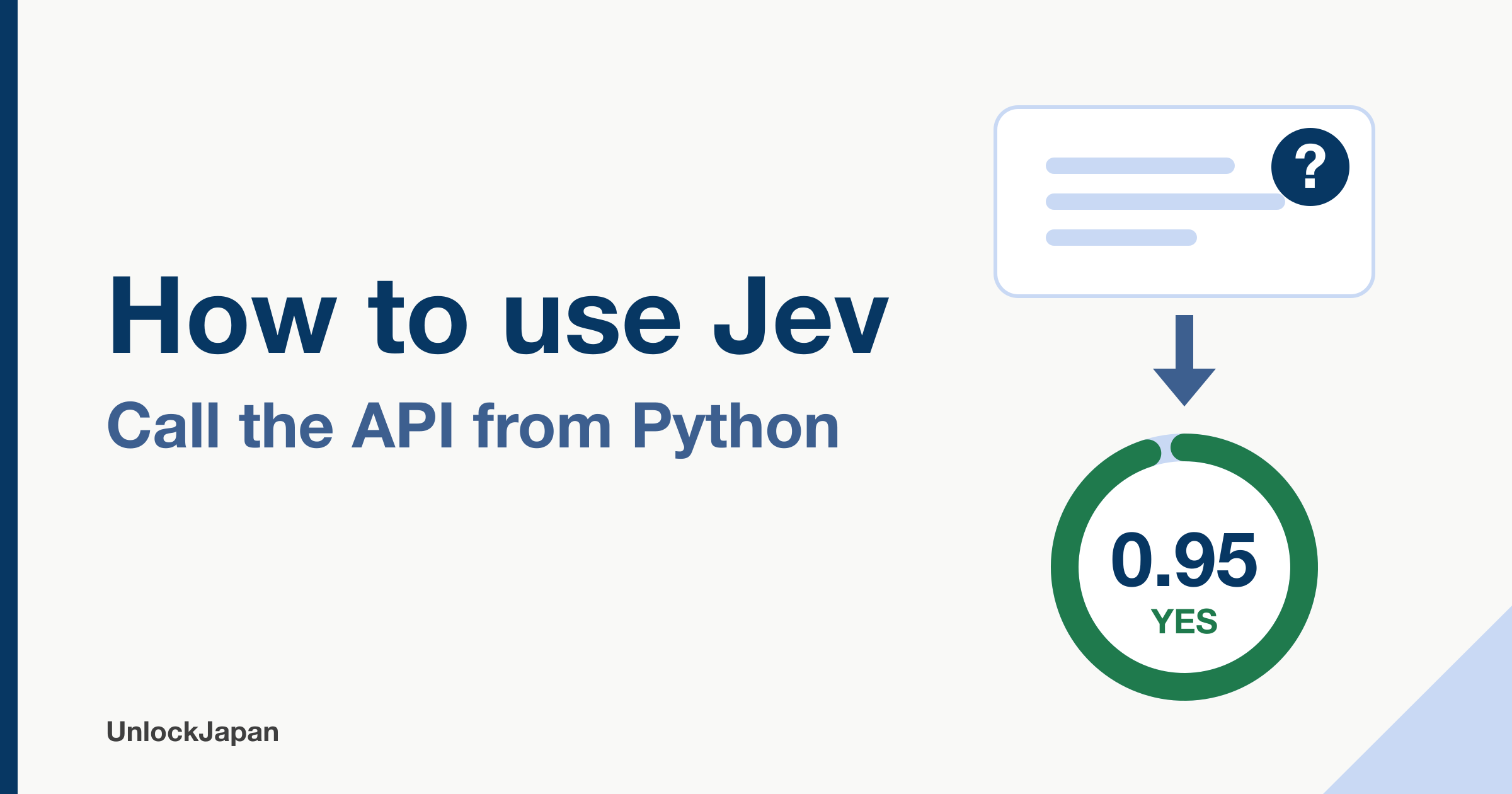
Jev is an AI model from TypeSafe, built for making decisions. You ask it questions, and it answers each one in the format you specify, such as one option from a list or a number. This page shows how to use Jev from Python: it sends one sample customer inquiry with four questions in a single request to jev-1.14.0 and explains how to read the response.
To use Jev from Python, you get an API key and send JSON that contains the text and images to judge, along with your questions. This page starts in the Playground, then sends the inquiry and an image from Python and reads the answers to four questions.
The example is a customer inquiry with a photo attached: the right side of the customer's wired earphones makes no sound, and they want to return them. A single request asks four questions about this inquiry.
Each question uses one of Jev's fixed formats, and Jev answers in that format. This page uses the four in the table below.
| Question format | What it asks |
|---|---|
| Choice (picks one option from a list) | Which desk should handle the inquiry: returns and exchanges (returns), repairs (repair) or billing (billing) |
| Noul (returns the probability of yes) | Whether the customer asks for an answer today |
| Score (rates against an ordered scale) | How upset the customer is, on a five-level scale |
| Box (returns a location in an image) | Where the damage is in the image |
Choice, Noul, Score and Box are the names of Jev's question formats. The official Primitives page covers each one in detail.
The outputs on this page come from a run on November 16, 2026, with the model jev-1.14.0. They are examples, not an evaluation of accuracy or speed.
Step 0: Create an account and try the Playground
You need a TypeSafe account to use Jev. Sign up and log in at the TypeSafe console, TypeSafe's web dashboard.
Once you are logged in, you can try Jev in the Playground before writing any code. The Playground is an official TypeSafe feature that runs Jev in the browser, with no code (see the official Quick start).
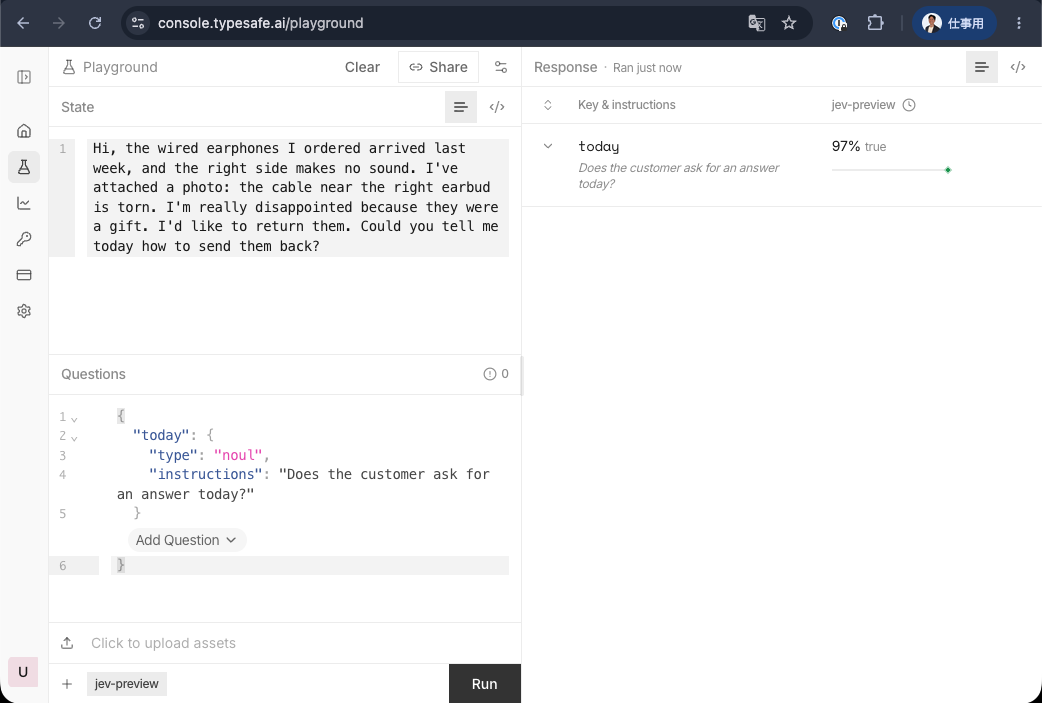
The Playground, captured on November 13, 2026. The State field on the left holds this page's inquiry, and the Questions field holds the Noul question today ("Does the customer ask for an answer today?"). The answer appears in the Response panel on the right.
Step by step:
- Open the Playground.
- Paste the inquiry below into the State field.
- Enter the question below in the Questions field.
- Click Run and check the answer in the Response panel.
The inquiry to paste:
Hi, the wired earphones I ordered arrived last week, and the right side makes no sound. I've attached a photo: the cable near the right earbud is torn. I'm really disappointed because they were a gift. I'd like to return them. Could you tell me today how to send them back?
The question to enter is named today (the name is arbitrary), uses the Noul format, and asks "Does the customer ask for an answer today?"
{
  "today": {
    "type": "noul",
    "instructions": "Does the customer ask for an answer today?"
  }
}
You can also add Choice and Score questions in the Playground. Next, send the same inquiry from Python, with an image and all four questions in a single request.
Step 1: Get an API key and send all four questions in one request
From here on, you send the same inquiry from Python, so you need Python 3. The code that calls the API uses only the standard library. A separate library comes in later, only to draw a rectangle on the image.
Create an API key and set it in your terminal
Create an API key on the console's API keys page. Then run these commands in a terminal:
mkdir typesafe-quickstart
cd typesafe-quickstart
read -rs TYPESAFE_API_KEY
export TYPESAFE_API_KEY
The first two lines create a working folder and move into it. After read -rs, the terminal waits for input without showing anything. Paste your API key and press Enter. If you open another terminal, move into this folder and run the read -rs and export lines again.
Save the image
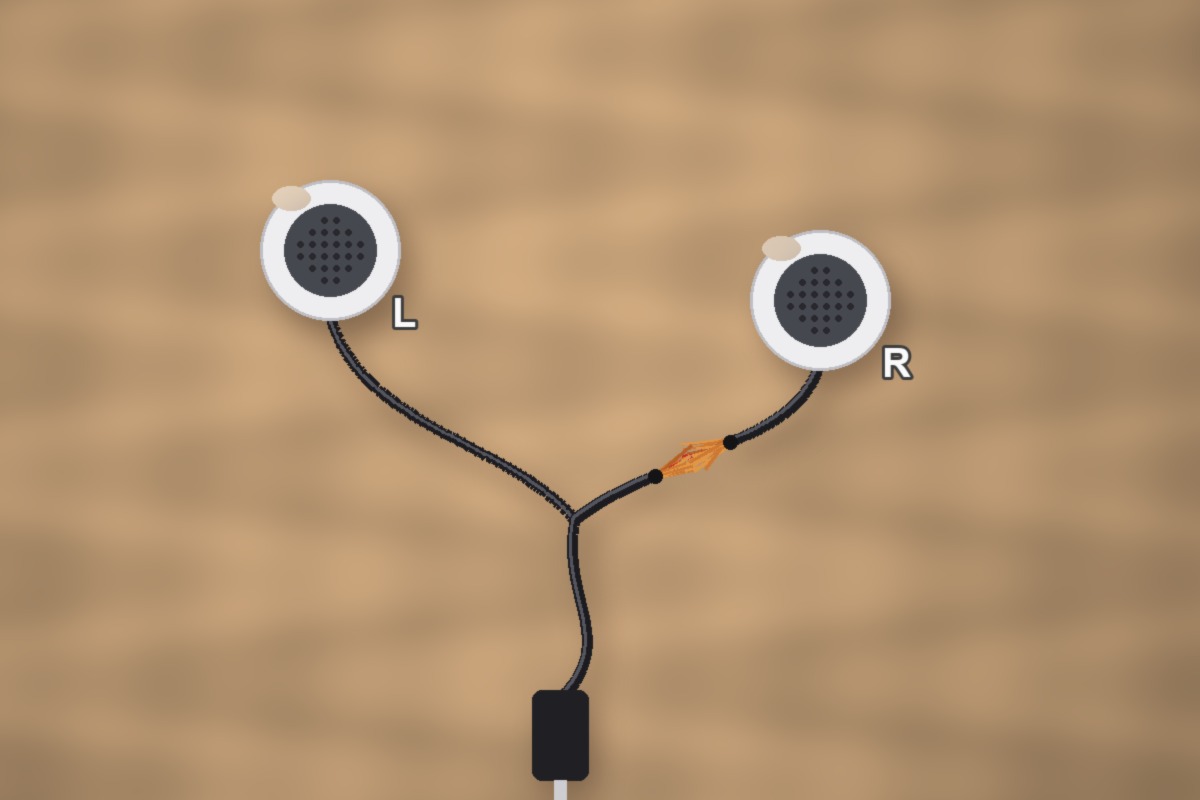
The sample image to send (a 1200×800 pixel JPEG). It stands in for the photo attached to the inquiry. It was drawn for this page with Pillow, a Python imaging library, and is not a photo of a real product. The cable jacket is torn near the right earbud.
In this example, the image is saved as earphones.jpg in the working folder.
Two things to know before you use images and Box:
- Box is a prototype feature. TypeSafe calls it "Dreamer-ready" and says it is not yet production-ready. The request format, the answers and the limits may change (official Box and Images pages).
- Box returns a rectangle even when the target is not in the image. There is no "not found" answer. This example uses a sample image that shows the damage. For images that may not contain the target, add a Noul question to the same request that asks whether the target is in the image, and skip the Box answer when that value is low. (The code on this page does not include that Noul question.)
Run the code
The data you send to Jev (the request) has these fields:
model: the model name. Here it isjev-1.14.0.state: the material for the decision. Here it holds the inquiry text asinquiryand a string that points to the image asphoto. You pick these names too.assets: the image data, encoded as a Base64 string so that it fits in the JSON.questions: the questions. Here there are four:desk(Choice),today(Noul),upset(Score) anddamage(Box). You pick the names, and the response uses the same names for the answers.
How the image gets to the model:
- A string that points to the image:
stateholds this string, not the image itself. The API swaps the string for the image before passing the state to the model. - UUID: use a UUID (a long, randomly generated identifier) as that string. The API looks for the string in the request's text and replaces it with the image. With a short string such as
photo, the same word in the inquiry could get replaced too. A UUID is very unlikely to match anything by accident. The official documentation also says a new UUID for each image is the safest choice. - Header: any request that includes an image or a Box question needs the header
TypeSafe-Danger-Zone-Images: true.
Save the code below as jev_quickstart.py.
import base64, json, os, time, urllib.request, uuid

INQUIRY = (
    "Hi, the wired earphones I ordered arrived last week, and the right side makes no sound. "
    "I've attached a photo: the cable near the right earbud is torn. "
    "I'm really disappointed because they were a gift. I'd like to return them. "
    "Could you tell me today how to send them back?"
)

with open("earphones.jpg", "rb") as f:
    photo_data = base64.b64encode(f.read()).decode("ascii")
photo_key = str(uuid.uuid4())

body = {
    "model": "jev-1.14.0",
    "state": {"inquiry": INQUIRY, "photo": photo_key},
    "assets": {photo_key: {"type": "image", "format": "jpg", "data_base64": photo_data}},
    "questions": {
        "desk": {
            "type": "choice",
            "instructions": "Which desk should handle this inquiry?",
            "criteria": {
                "returns": "The customer wants to return or exchange an item",
                "repair": "The item is faulty and the customer wants it fixed",
                "billing": "A question about a charge or a refund date",
            },
        },
        "today": {
            "type": "noul",
            "instructions": "Does the customer ask for an answer today?",
        },
        "upset": {
            "type": "score",
            "instructions": "How upset is the customer?",
            "criteria": [
                "Calm; no sign of frustration",
                "Slightly annoyed",
                "Clearly unhappy",
                "Very upset; a strong complaint",
                "Furious; threatens to leave or post a bad review",
            ],
        },
        "damage": {
            "type": "box",
            "instructions": "the damaged part of the earphones in `photo`",
        },
    },
}

request = urllib.request.Request(
    "https://api.typesafe.ai/v1/systemone",
    data=json.dumps(body).encode(),
    headers={
        "Authorization": f"Bearer {os.environ['TYPESAFE_API_KEY']}",
        "Content-Type": "application/json",
        "TypeSafe-Danger-Zone-Images": "true",
    },
)
start = time.perf_counter()
with urllib.request.urlopen(request, timeout=60) as response:
    result = json.load(response)
elapsed = time.perf_counter() - start

print(json.dumps(result, indent=2))
print(f"# {elapsed:.2f} s")
with open("response.json", "w") as f:
    json.dump(result, f, indent=2)
What the code does:
- The four questions sit under
questionsand go out together in one request.deskis a Choice, so it has the question text (instructions) and the options (criteria).todayis a Noul, so it has onlytypeand the question text; it is the same question you entered in the Playground in Step 0.upsetis a Score, so it lists the rating criteria (criteria) from the lowest level up. Jev numbers the levels from 0 in the order you list them. This example has five levels, so they run from 0 to 4.damageis a Box, so it has onlytypeandinstructions. Theinstructionssay what to find and in which image:`photo`in the question text refers to the image in thephotofield ofstate. - The endpoint is
https://api.typesafe.ai/v1/systemone. The code reads the API key from the environment variable and puts it in theAuthorizationheader. - The last two lines save the response to
response.json, which the rectangle-drawing script reads later. The code also prints how long the call took.
This example encodes the image as a string so that it can go in the same JSON request. The official documentation recommends sending the image file as is, because Base64 makes the data about a third larger. The official Images page shows how.
Run the script:
python3 jev_quickstart.pyStep 2: Read the response
Here is the output of jev_quickstart.py from a run on November 16, 2026.
{
  "model": "jev-1.14.0",
  "answers": {
    "desk": {
      "type": "choice",
      "choice": "returns",
      "confidence": 1.0,
      "probabilities": {
        "returns": 1.0,
        "repair": 0.0,
        "billing": 0.0
      }
    },
    "today": {
      "type": "noul",
      "noul": 0.95
    },
    "upset": {
      "type": "score",
      "score": 1.83,
      "confidence": 0.86,
      "legend": {
        "0": "Calm; no sign of frustration",
        "1": "Slightly annoyed",
        "2": "Clearly unhappy",
        "3": "Very upset; a strong complaint",
        "4": "Furious; threatens to leave or post a bad review"
      },
      "probabilities": {
        "0": 0.0,
        "1": 0.17,
        "2": 0.83,
        "3": 0.0,
        "4": 0.0
      }
    },
    "damage": {
      "type": "box",
      "box": {
        "top": 0.51,
        "bottom": 0.6,
        "left": 0.55,
        "right": 0.63
      },
      "confidence": 0.81
    }
  },
  "usage": {
    "input_tokens": 3062,
    "output_tokens": 85
  }
}
# 0.59 s
The last line, # 0.59 s, is the time in seconds from sending the request to receiving the response.
The answers are under answers, keyed by question name (desk, today, upset and damage). In Python, you read one with, for example, result["answers"]["desk"]["choice"].
desk (Choice): the selected option and the probability of each option
probabilities: the probability of each option, from 0 to 1, where 1.0 is 100% and 0.0 is 0%. They add up to 1. Herereturnsis 1.0 and the other two are 0.0.choice: the selected option. Here it isreturns(returns and exchanges).confidence: a value from 0 to 1 that shows how concentrated the probability is on one option. It is higher when the probability sits on one option and lower when it spreads across several (official Choice page). Here all of it is onreturns, so the value is 1.0.
Both the probabilities and confidence are values the model returns. A value of 1.0 does not mean the answer is correct. The official documentation also says a confidence of 1.0 is not a guarantee of correctness (Score).
today (Noul): the probability of yes
noul: the probability that the answer to the question is yes, from 0 to 1. The closer to 1, the more likely yes; the closer to 0, the more likely no. A value near 0.5 means yes and no are about equally likely.- The value here is 0.95. The model assigns a high probability to the customer requesting an answer today.
- A Noul answer has no
confidence.
The cut-off your code uses to turn the value into yes or no is called a threshold. As a starting point, the official documentation gives an example: treat values above 0.7 as yes and below 0.3 as no, and send anything in between to a person (official Noul page). By that rule, 0.95 is a yes.
upset (Score): a rating on ordered levels
score: the rating. It runs from 0 to the number of the top level (4 in this example) and can fall between two levels. Here it is 1.83.probabilities: the probability of each level. Here level 1 is 0.17 and level 2 is 0.83.legend: maps each level number to its criterion text.confidence: as with Choice, a value that shows how concentrated the probability is. Here it is 0.86.
The criteria and probabilities for each level:
| Level | Criterion (text in criteria) |
Probability |
|---|---|---|
| 0 | Calm; no sign of frustration | 0.0 |
| 1 | Slightly annoyed | 0.17 |
| 2 | Clearly unhappy | 0.83 |
| 3 | Very upset; a strong complaint | 0.0 |
| 4 | Furious; threatens to leave or post a bad review | 0.0 |
Level 2 has a probability of 0.83, so the rating is closest to "Clearly unhappy".
The score is the sum of each level number times its probability (official Score page). With the probabilities from this run:
0×0.0 + 1×0.17 + 2×0.83 + 3×0.0 + 4×0.0 = 1.83That matches the score of 1.83 in the response.
Because of this calculation, different spreads of probability can produce the same score. In the official example, a score of 1.0 can mean all the probability is on level 1, or half is on level 0 and half on level 2. So read score together with probabilities.
confidence is also computed from how the probability is spread (official Score page). The 0.86 here is not the highest probability (0.83), so do not read it as the probability of level 2.
damage (Box): a location in the image
box: the positions of the rectangle's top, bottom, left and right edges, as fractions measured from the image's top-left corner. For example, aleftof 0.55 is 55% of the image width from the left edge, and atopof 0.51 is 51% of the image height from the top edge.confidence: a value from 0 to 1; the higher it is, the more sure the model is of its answer (official Box page). Here it is 0.81. It does not mean an 81% chance that the location is correct. The official documentation says there is no recommended threshold yet.
Other fields
model: the model that actually answered.usage: how many tokens this request used. A token is the unit a model uses to count the data it processes. Here the input (input_tokens) is 3062 and the output (output_tokens) is 85. The input count covers both the text and the image (official Images page).
The same code can return slightly different values. Across three runs of this page's code, the second decimal place sometimes changed in today, score and the damage location. desk was returns all three times.
Draw the returned rectangle on the image
To check the returned location, draw it on the image. Save the code below as draw_box.py in the same folder.
import json
from PIL import Image, ImageDraw

image = Image.open("earphones.jpg").convert("RGB")
width, height = image.size
edges = json.load(open("response.json"))["answers"]["damage"]["box"]
box = (
    round(edges["left"] * width),
    round(edges["top"] * height),
    round(edges["right"] * width),
    round(edges["bottom"] * height),
)
ImageDraw.Draw(image).rectangle(box, outline=(255, 0, 128), width=6)
image.save("earphones-box.png")
print(box)
The script reads the box values from the saved response (response.json), multiplies each fraction by the image width or height to get pixel positions, and draws the rectangle.
It needs Pillow, an imaging library. Create a virtual environment (a Python environment just for this folder) in the working folder, install Pillow into it, and run the script:
python3 -m venv .venv
.venv/bin/pip install pillow
.venv/bin/python draw_box.py
The first line creates the virtual environment (.venv), the second installs Pillow, and the third runs draw_box.py. We ran these three lines with the same Python 3.15.2 that called the API and confirmed that pip installed Pillow 13.0.0.
With the response shown on this page, the script prints (660, 408, 756, 480): pixel positions in the order left, top, right, bottom (the image is 1200×800 pixels). If you call the API yourself, your values may differ. The image with the rectangle is saved as earphones-box.png.
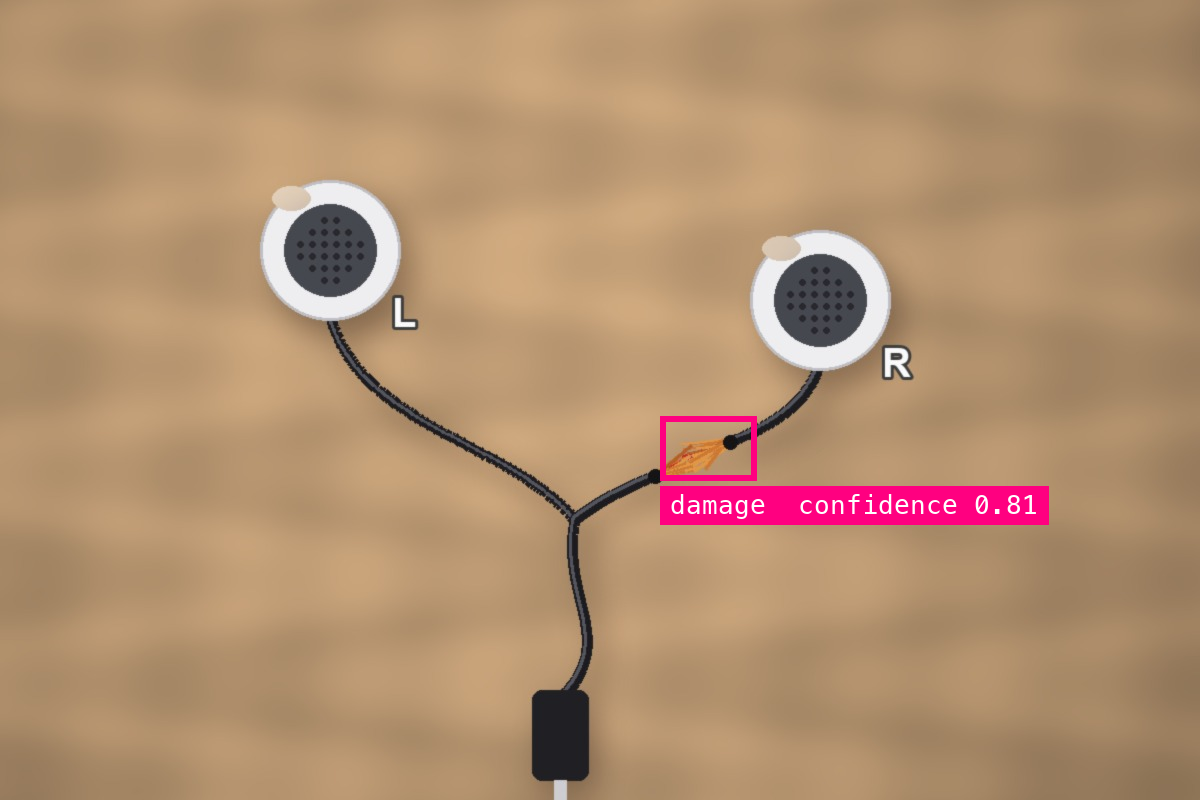
The sample image with a rectangle drawn at the returned location. The figure was drawn from the location returned in a run on November 13, 2026 (top 0.52, bottom 0.6, left 0.55, right 0.63, with a confidence of 0.81), which is (660, 416, 756, 480) in pixels. Its top edge differs by 0.01 (8 pixels) from the November 16 output shown above. The rectangle surrounds the torn part of the cable. We added the "damage confidence 0.81" label for illustration.
This is the result for one sample image. It does not show how accurate Box is.
Using your own image
To use a different image, change the file name that jev_quickstart.py reads and the format. The format is "png" for PNG and "jpg" for JPEG. If you also draw the rectangle, change the file name in draw_box.py to the same image.
The image must meet these limits (official Images page):
- Format: PNG or JPEG
- Width and height: 280 to 1568 pixels each
- File size: up to 16 MiB (about 16.8 MB) per image file
Summary
You sent one inquiry and one image with four questions in a single request. Choice returns the selected option, Noul the probability of yes, Score a rating on the levels you defined, and Box a rectangle in the image.
What to read next
- What is Jev: what Jev is and how it works.
- Official documentation (checked on November 13, 2026): Quick start, Choice, Noul, Score, Box and Images.
For records of trying Jev on real tasks, see the articles linked below this page. They are written in Japanese on note, a Japanese blogging platform (note offers an English machine translation).
UnlockJapan made the API calls on this page on November 16, 2026. jev_quickstart.py, the script that calls the API, ran on Python 3.15.2 on macOS. draw_box.py, the script that draws the rectangle, ran on the same Python 3.15.2 with Pillow 13.0.0.
UnlockJapan, which publishes this page, has no partnership with TypeSafe, the provider of Jev, and receives no payment or sponsorship from it.
Related reading
Blog
Jev in Japanese: the same questions in Japanese and English
Jev's Noul, Score and Choice compared
What is Jev? An AI built for decisions
The series on note (Japanese, machine-translated)